
This article introduces the WordPress plugin DB/File Diff Monitor and Backups.
DB/File Diff Monitor and Backups
This plugin is a security and backup plugin that monitors changes to your WordPress database and files, quickly detects and identifies tampering, and minimizes data loss by restoring only the affected parts.
Features
- Database and file change monitoring
- Fast tampering detection and pinpoint restoration
- Emergency recovery after failed plugin or theme updates
- Selective backup and restore
- Migration
- wp options maintenance
Download
It is currently available for free.
I need your support to continue developing and providing support for this plugin.
I plan to make it a paid product in the future, so if you like the plugin, I would appreciate it if you would consider purchasing it.
When you click the download button, a password entry page will appear. Enter the password ( cdmb-test ) to download.
When you enter your password, the download will start automatically.
Install
You can install the downloaded zip file by uploading the plugin on Plugins page – Add New.
Required Environment
- WordPress 6.8 or higher
- PHP version 8.1 or higher
- php sqlite3 extension must be enabled.
- php mysql PDO extension must be enabled.
File Change Monitoring
This feature makes it easy to identify changed files, view the changes in a differential view, and perform pinpoint restorations.
Problems Caused by File Modifications, Not Just Unauthorized Access
Security measures are crucial when operating a WordPress site, and unfortunately, even with robust security measures, 100% safety is impossible.
Generally, protection against unauthorized access involves utilizing various security measures provided by the server (hosting service) and installing WordPress security plugins.
However, even with various security measures in place, preventing unauthorized access through the insertion of PHP files is extremely difficult.
Typically, a site running on WordPress has thousands of files or more!
If a file has been tampered with, it is very difficult to find out which file has been tampered with and recover it!
Furthermore, there are various risks not only from file tampering but also from regular WordPress, theme, and plugin updates. Since themes and plugins are often not updated simultaneously with WordPress core updates, it’s easy for the display to suddenly break or functionality to cease.
Here are the main steps for file monitoring.
No. 1 and No. 2 are the first settings to be made after installation.
No. 3 is the routine file change detection, and No. 4 and No. 5 are the work to be done after file change detection.
File monitoring option settings
Register directories, extensions, and sizes to exclude from file change monitoring.
Automatic Change Monitoring
Specify the time to automatically perform DB/file scans.
Registration of excluded directory paths
To exclude cache data, backup directories, Git or other version control directories, enclose the target directories in a slash (/) before registering them. All files within that directory tree will then be excluded from monitoring.
Registration of excluded file extensions
Registering a file extension will exclude all files with that extension from monitoring. Generally, you register the extensions of files that are expected to be added, deleted, or updated during operation, such as backup data, cache data, compressed files, and log files.
Registration of excluded file sizes
Files larger than the specified size will be excluded from file monitoring.
Registration of base data for monitoring
After registering the directories/file extensions to be excluded from file monitoring, you register the base data that will be used to monitor file changes.
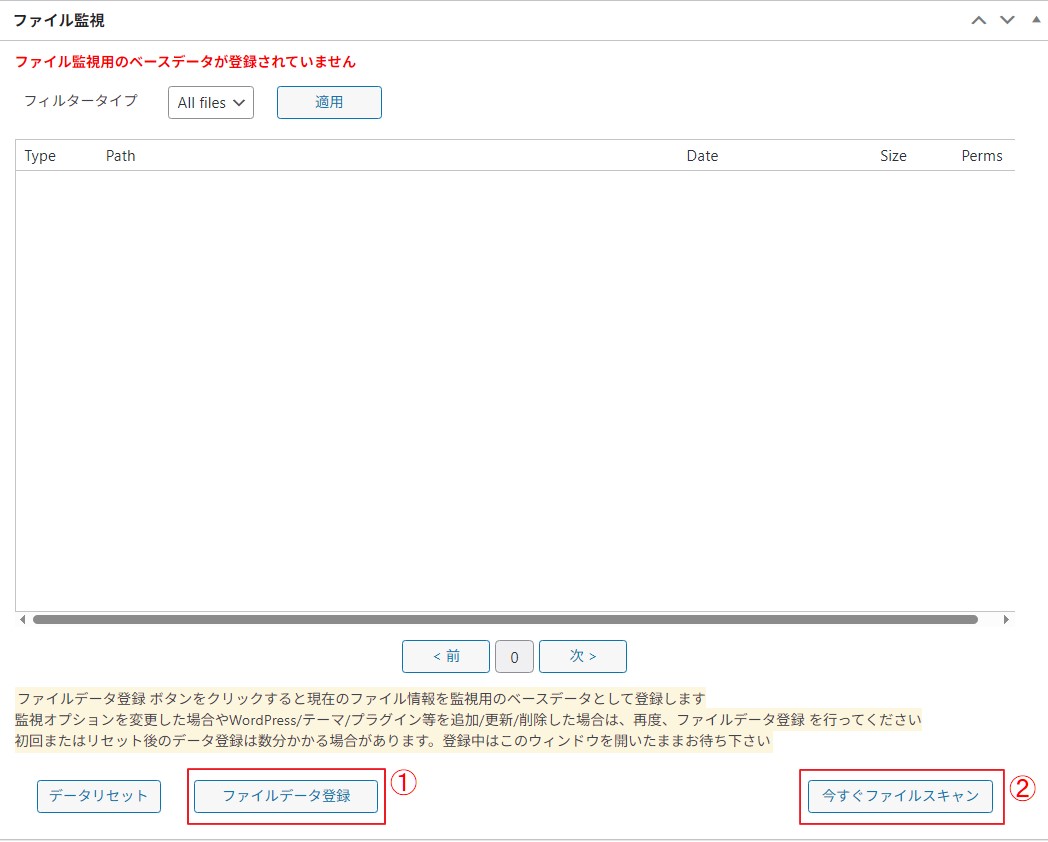
Clicking the “Register File Data” button retrieves the current file information and saves it as base data for monitoring.
The files to be monitored are those under the directory tree specified by ABTHPATH defined within WordPress.
Depending on the server environment, initial data registration or data reset registration may take several minutes. Please keep the page open and wait until registration is complete.
Once registration is complete, the number of files registered in the base data as targets for file modification will be displayed.
Subsequently, this base data will be used to detect file additions, deletions, and updates, and the results will be displayed.
File Change Detection Scan
If automatic scanning is enabled, it will scan file information and detect changes at the specified time (this is not precise as it is executed by wp cron). Alternatively, you can scan at any time by clicking the “File Scan Now” button.
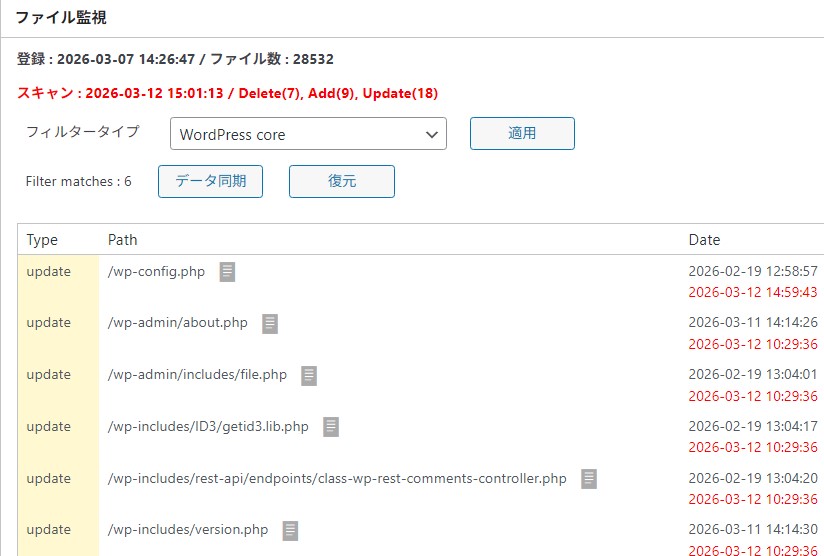
If file changes are detected, the modified files will be listed.
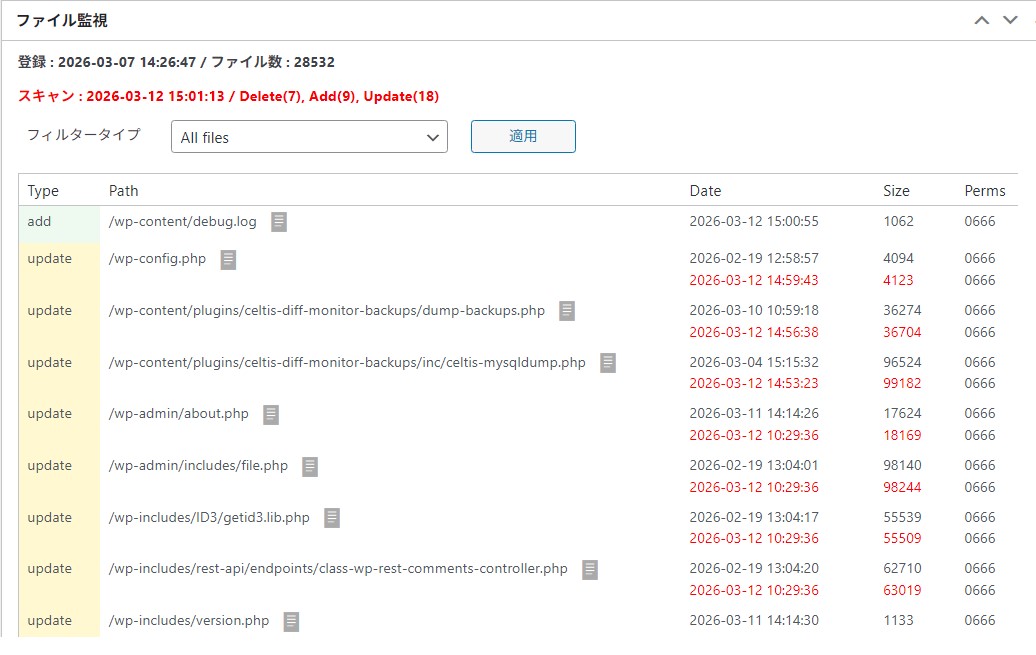
Confirmation of changes
By clicking the icon displayed after the file name in the list of changed files, you can view the differences in that file and check the changes made.
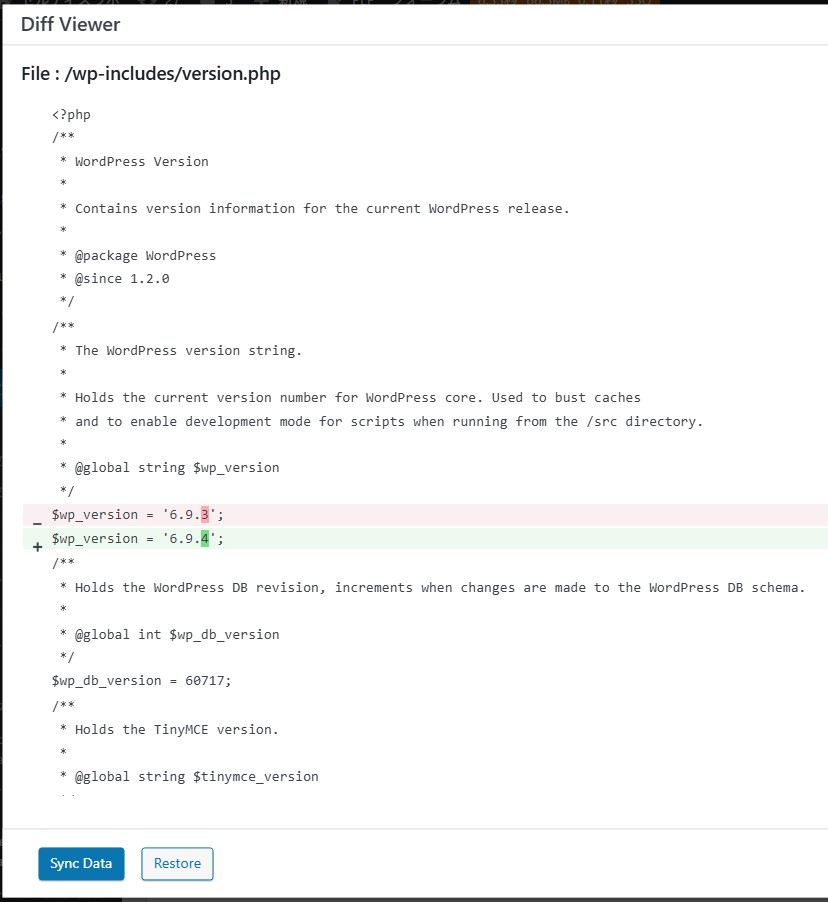
If the file change is detected after adding, deleting, or updating plugins or themes, the possibility of file tampering due to unauthorized access is low. However, if file changes are detected in any other way, please check the contents using the diff view. If you suspect tampering due to unauthorized access, please restore the file immediately.
Sync or Restore
By selecting the display target from the filter type and clicking the “Apply” button, you can display the list by plugin or theme.
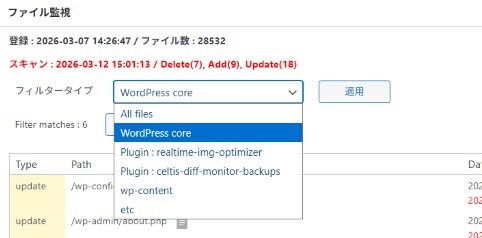
For changes to plugins, themes, etc., buttons will appear here to “sync” or “restore” the selected target.
Sync
This synchronizes the selected theme and plugin change detection data with the base data and updates the base data.
To synchronize all change detection files at once, rather than per target such as plugins or themes, click the “Register File Data” button to update the base data.
Restore
Restore the selected target files, such as themes or plugins, from the data registered in the base data.
Database Change Monitoring
DB monitoring option settings
Register tables and keywords to be excluded from database change monitoring.
Registration of exclusion tables
If you register a table to be excluded from table monitoring, that table will be excluded from monitoring.
Keyword registration for excluded data rows
This keyword is used to exclude data rows containing that keyword from monitoring within a table. For example, in an options table, transient data is created to temporarily store data, and if this is not excluded, the options table will always be detected as having changed. Therefore, by registering the keyword _transient_, all transient data will be excluded from change monitoring.
Other data may also be stored as temporary data. If there is data that is always detected in your environment, you can register a keyword to identify that data, and it will be excluded from change monitoring.
Registration of base data for monitoring
After registering the tables/keywords to be excluded from DB table monitoring, you register the base data that will be used to monitor changes in the DB tables.
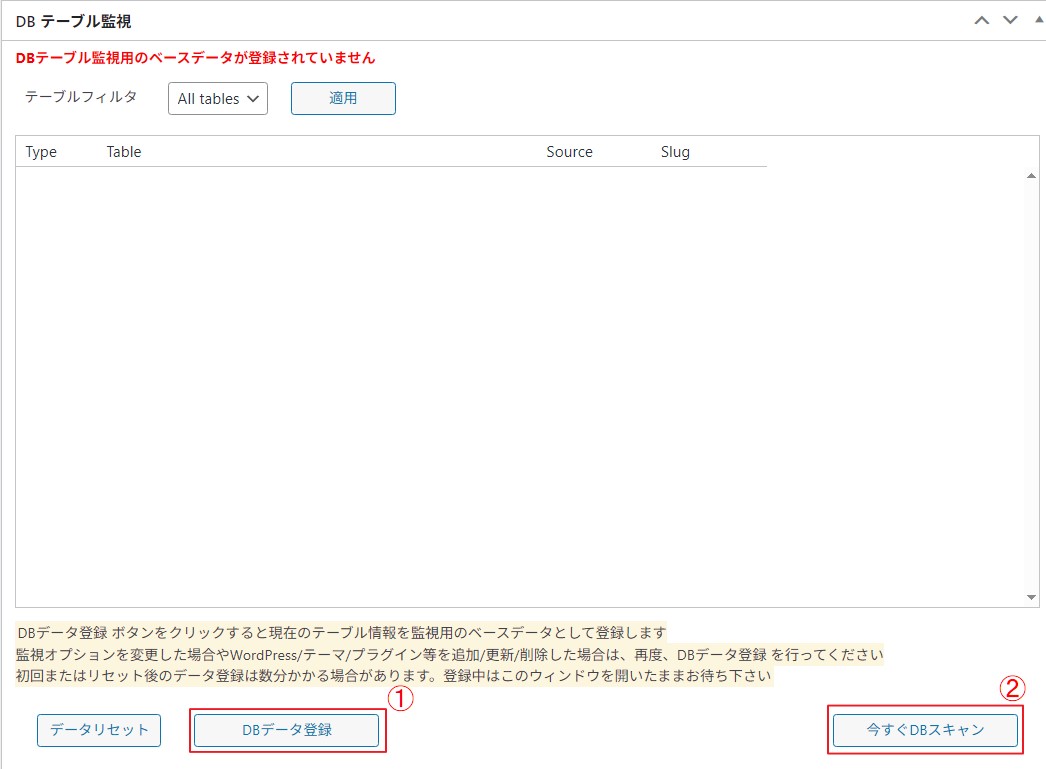
Clicking the “Register DB Data” button retrieves the current DB table information and saves it as base data for monitoring.
Depending on the server environment, initial data registration or data reset registration may take several minutes. Please keep the page open and wait until registration is complete.
Once registration is complete, the number of tables registered in the base data as targets for DB table modification will be displayed.
From here on, this base data will be used to detect additions, deletions, and updates to the database and display the results.
DB Change Detection Scan
If automatic scanning is enabled, the database will be scanned at the specified time. Alternatively, you can scan it at any time by clicking the “DB Scan Now” button.
If database changes are detected, the modified tables will be listed.
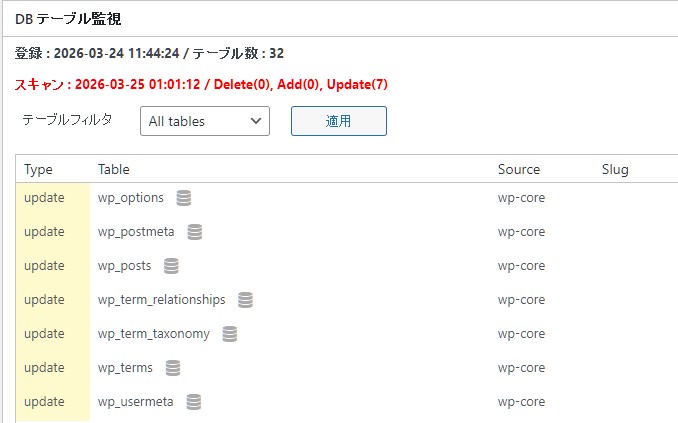
Confirmation of changes
By clicking the icon displayed after the table name in the list of changed tables, you can see the differences in the data within that table and check the changes.
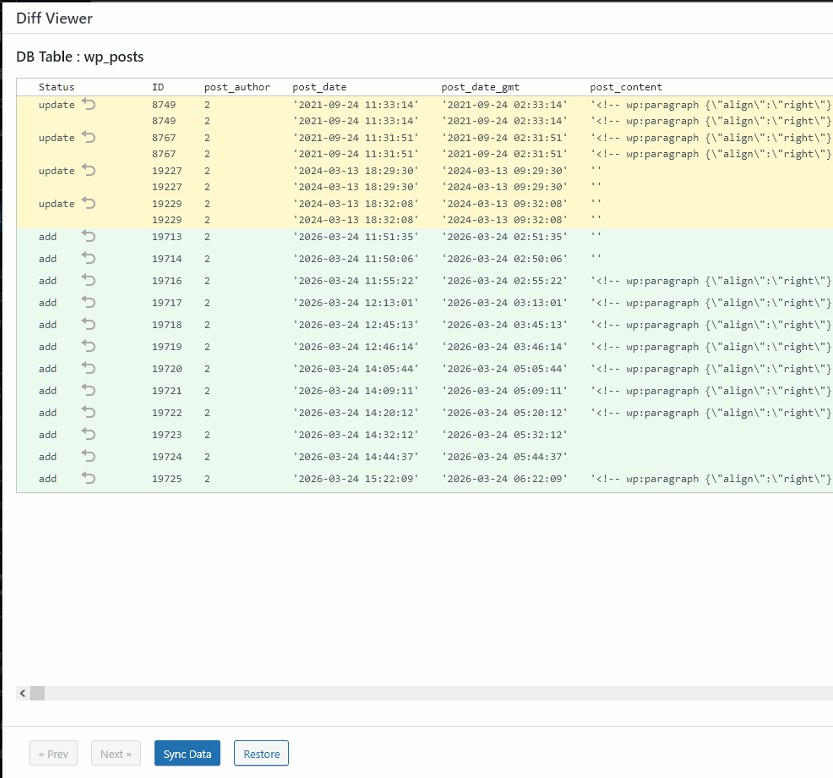
If data changes are detected, please check the contents using the differential view, and if it appears to be tampering due to unauthorized access, please restore it immediately.
Sync or Restore
By selecting the display target from the filter type and clicking the “Apply” button, you can display the list by plugin or theme.
For table changes specific to plugins, themes, etc., buttons will appear here to “sync” or “restore” the selected target table.
Sync
This synchronizes the selected theme and plugin change detection data with the base data and updates the base data.
To synchronize all change detection db data at once, rather than per target such as plugins or themes, click the “Register DB Data” button to update the base data.
Restore
Restore the selected target tables, such as themes or plugins, from the data registered in the base data.
Emergency Recovery
Emergency restore tool when WordPress cannot be executed
WordPress may become unworkable due to a small problem. This is not only about file tampering by unauthorized access, but also about automatic updates of WordPress itself, plug-ins, themes, and so on, which may suddenly become unworkable one day.
Once it becomes unworkable, it is very difficult to recover it without technical knowledge!
With this plugin, you will be able to monitor changes to files due to WordPress updates (core, plugins, themes, etc.), including security measures, and easily restore changed files to their original state!
If WordPress fails to run and you are unable to log in, do not panic. It is very likely that you can restore it to its original state by using the Emergency Restore tool.
For example, if your site is example.com, you can access the following URL and log in as a site administrator to use the file recovery tool.
https://example.com/wp-content/plugins/celtis-diff-monitor-backups/restore-wpcore.php
Let’s assume that updating the jewelbeetle theme caused some kind of problem, preventing WordPress from starting. Here’s how to restore it:
Access this URL from your browser. The site administrator login screen will appear; please enter your username and password.
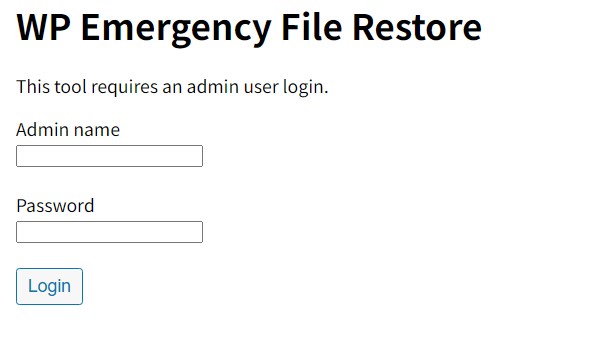
Once you log in, a very simple screen will appear.
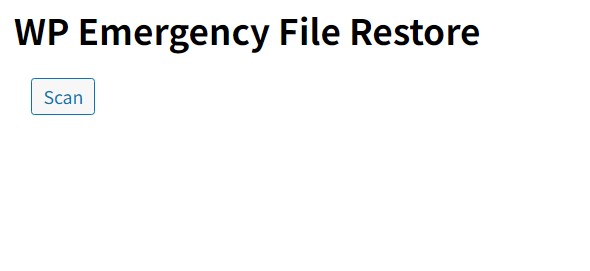
Clicking the “Scan” button will detect file changes in WordPress core, plugins, and themes against your registered base data.
If changes are detected, they will be displayed as follows.
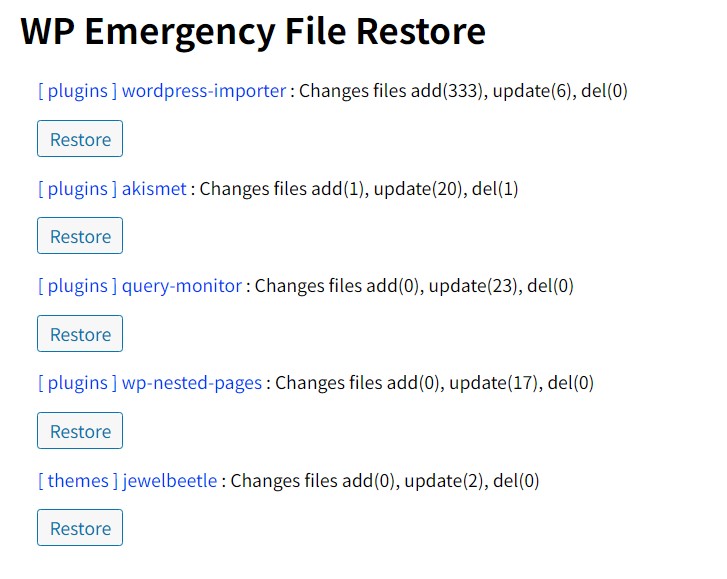
In this example, the jewelbeetle theme is the target, so click the “Restore” button shown below to restore it to its previous state.
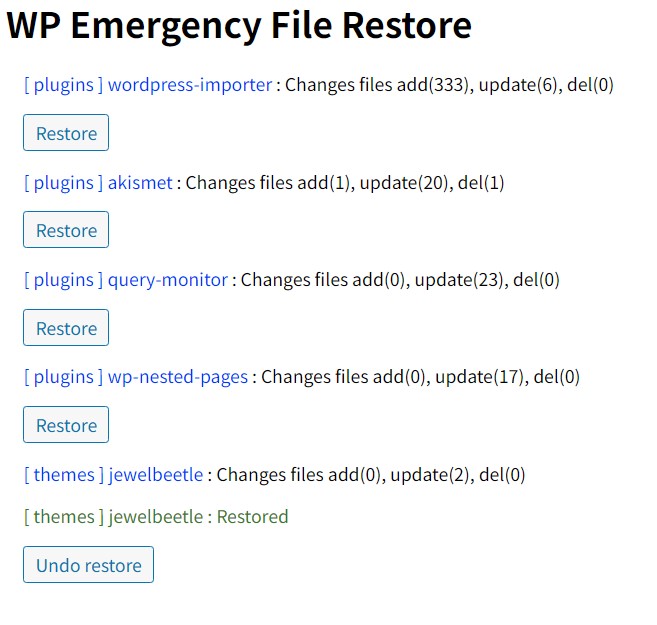
Now that the jewelbeetle theme has been restored to its working state, you should be able to access example.com and the site should display correctly.
If the source of the problem is unknown, restore themes and plugins one by one, checking if the site displays correctly. Once the source of the problem is identified, use “Undo Restore” to revert all other plugins and plugins to their original state.
(This page’s operation is valid for approximately one hour. If it exceeds this time, please reload the page and start the scan again.)
If the site cannot be displayed in the restoration
There may be cases where the site does not display even after using this restoration tool
For example, if the problem is caused by a change in the PHP version
In this case, you may have to revert back to the PHP version or rebuild with a new PHP version
In other cases, .htaccess file may be tampered with and redirect to a different site. In such cases, the restore tool itself may not be able to run.
Export/Import
It’s important to perform backups regularly, either by utilizing the backup function provided by your hosting service or by using a plugin.
This plugin allows you to easily back up and restore your data using its export/import function.
Export (Backup)
User Content Files
The files selected for export will be archived and downloaded as a backup.
- Media files (uploads)
- Plugin files (plugins)
- Theme files (themes)
- Other files within wp-content not listed above
Database table
Selected tables, including WordPress core tables and plugin tables, will be downloaded as a dump file.
Import (Restore)
This plugin allows you to import backups you’ve exported.
Simply import the backed-up files, and the restoration process will begin.
Migration
You can use the exported uploads, plugins, themes, and content file archives, as well as the database dump file, to migrate data to another WordPress site.
Source site
First, export (backup) the source site before migration, including the uploads, content, plugins, and themes file archives. Next, export the necessary database tables.
Normally, all database tables are exported, but it is also possible to export only the WP core and necessary plugin databases.
Destination site
The destination site must have WordPress running.
First, install and set up the DB/File diff monitor and backups plugin on the destination site as well.
Importing data will clear the database on the destination site and replace it with the imported data. Therefore, if data already exists on the destination site, please back it up beforehand if necessary.
If the destination site contains plugins or theme files, back them up as needed, and uninstall any plugins other than this one.
From the destination import (restore) process, first import the file archive, and then import the DB dump file.
During import, the system automatically replaces the relevant data within the imported data to match the siteurl, home, uploads, content, plugins, themes paths, and database prefixes of the destination site.
After the migration, please verify that there are no broken links and that the site displays correctly.
When you import the user and usermeta tables, the imported user data will be replaced. However, the user information of the administrator user performing the import on the destination site will be protected, and you will still be able to log in using that administrator user and password after the migration.
options maintenance
When you try out many plugins, repeated installations and uninstallations can unknowingly leave plugin data in the options table, which can accumulate and degrade performance.
This feature helps you select and clean up this unnecessary options data, and disable autoloading.
- Cleaning up unnecessary data left in wp_options
- Performance improvement by disabling autoloading of wp_options options.
Disclaimer
The author is not responsible for any damage caused by the use of this software, so please use it at your own risk.
Afterword
Thank you for using DB/File Diff Monitor and Backups plugin.
We also offer plugin for image optimization.
Regardless of the WordPress thumbnail size setting, you can always use an image resized to your favorite size, and you can easily use WebP images to make it lighter and faster.
WordPress Plugin : Realtime Image Optimizer

 セルティスラボ